Getting Started: Claim Access, Add the Indicators, First Setup
Claim your TradingView access on Whop, add Statistical Mapping° and Statistical Volatility° to your chart, and set up a simple first configuration.
This guide takes you from purchase to a working chart in three steps: claim your TradingView access on Whop, add Statistical Mapping° (StatMap°) and Statistical Volatility° (StatVol°) to your chart, and set up a simple first configuration.
Step 1: Subscribe and claim access on Whop
Checkout runs through Whop. You can find the current plans on the pricing section. Every plan includes both indicators, regular updates and Premium Discord access.
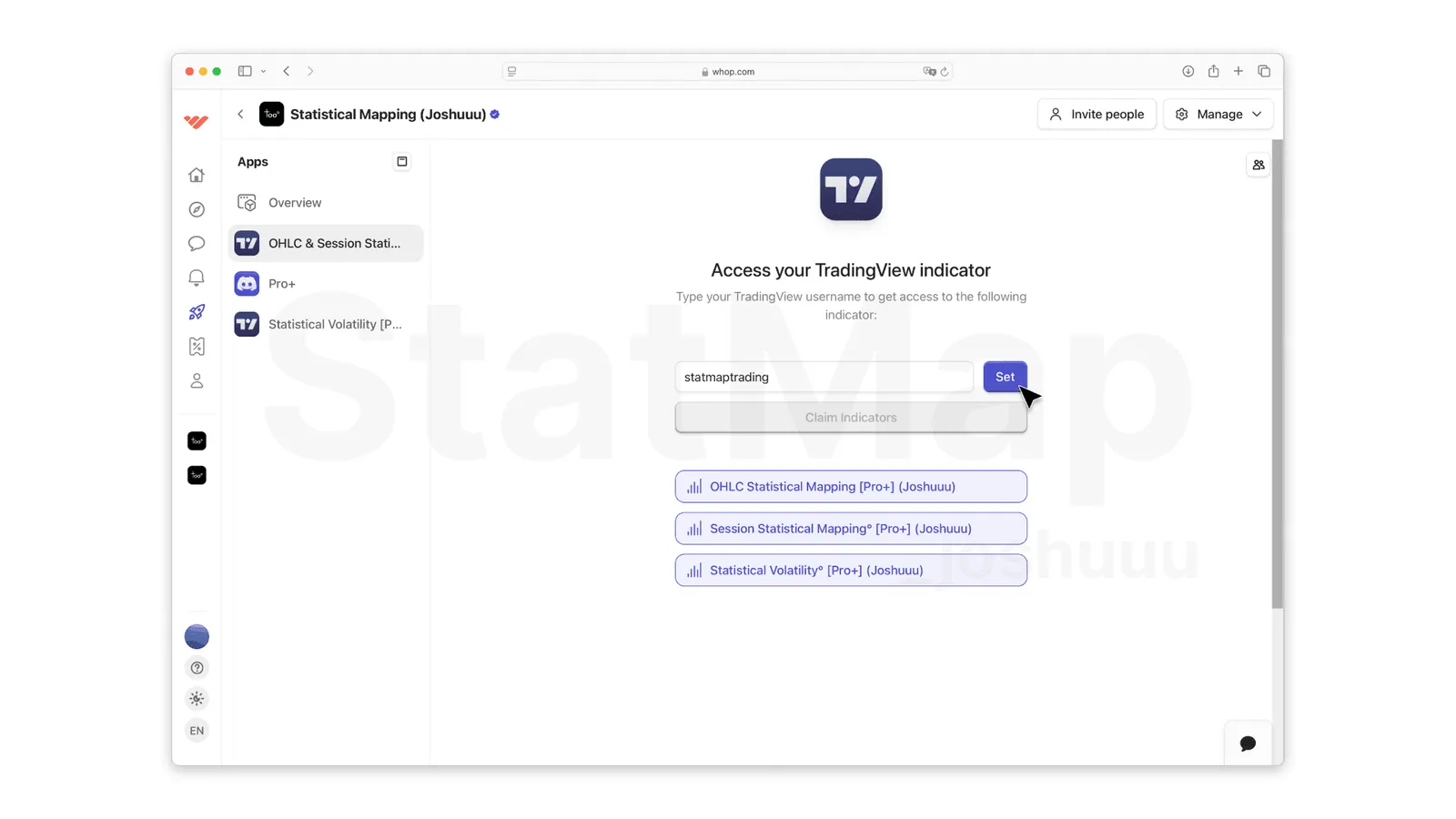
After subscribing, open your StatMap membership on Whop at whop.com/statmap and go to the TradingView access page. There:
- Enter your TradingView username. Use the exact username of your TradingView account, not your email address.
- Click Set. This links your Whop membership with your TradingView username.
- Click Claim Indicators. Once your username is verified, the indicators are unlocked for your TradingView account.
Step 2: Add the indicators in TradingView
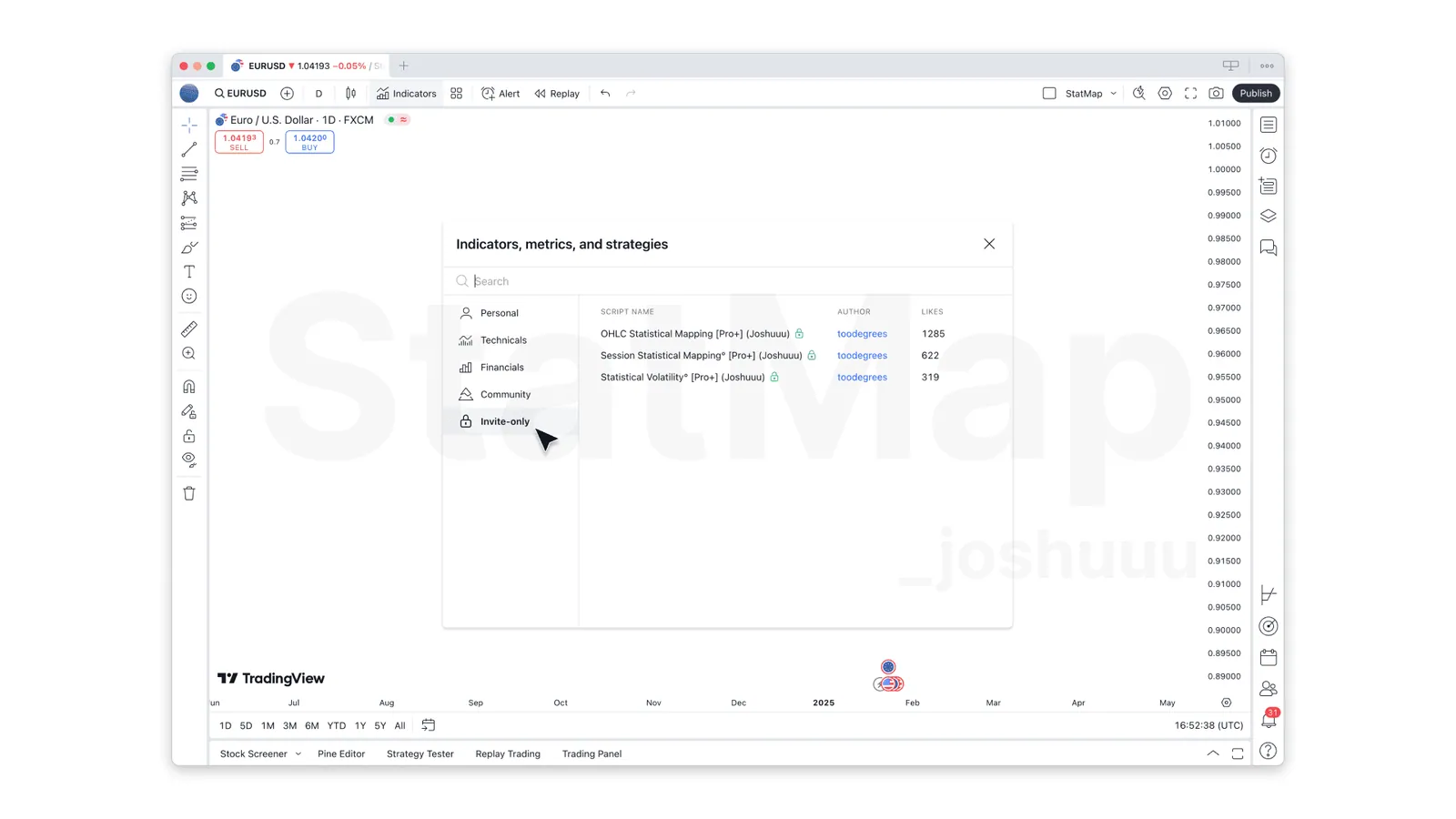
- Open a chart in TradingView and click Indicators in the top toolbar. The Indicators, Metrics and Strategies window opens.
- Go to the Invite-only section. You will find:
- Statistical Mapping°
- Statistical Volatility°
- Click an indicator to add it to your chart.
If the indicators do not show up, refresh TradingView and check that the username you entered on Whop is spelled exactly like your TradingView username.
You do not need a paid TradingView plan just to run StatMap° and StatVol°. Some TradingView features have their own plan limits, for example custom time intervals are not available on the free Basic plan.
Step 3: Your first setup
Start simple and add complexity once you understand what you see.
Statistical Mapping°
- Enable one timeframe row that matches how you trade, for example 1D, and leave the other rows off for now.
- Keep the Calculation Lookback at 60 samples for stable statistics.
- Pick a Calculation Method: Median for more conservative levels, Mean for levels further out, or Both to see the range between them.
- Enable only the levels you actually trade in the Style settings. This also limits which levels send alerts.
- Turn on Liquidity to see where swing highs and lows line up with the projected levels.
New to the five levels? Read What is Statistical Mapping? before you trade them.
Statistical Volatility°
- Make sure Statistical Displacement is enabled.
- Choose a Type: Range, Body or FVG.
- Set the Volatility Filter. Medium (300%) is a good starting point, then adjust to your market.
- Pick the chart timeframe or a higher Timeframe for displacements.
- Turn on the Graph Pane to see which hours of the day are typically the most active.
Every option is explained in the StatMap° v4 Settings Reference.
Next steps
- Alerts: set up notifications for level touches and displacements with How to Set Up Alerts in TradingView.
- Layouts: save your configuration as a TradingView layout, or copy a shared one, with Copying TradingView Layouts.
- Help: join the StatMap Discord for questions and setups from other traders. For billing questions about your Whop membership, use your Whop account settings or write to contact@stat-map.com.
Put it on your chart
Get Statistical Mapping° and Statistical Volatility° for TradingView, or ask StatMap AI about settings and setup.
Related articles
StatMap° v4 Settings Reference
Every setting of Statistical Mapping° and Statistical Volatility° v4 explained: calculation, timeframes, sessions, style, liquidity, graph pane and alerts.
How to Set Up Alerts in TradingView
Set up TradingView alerts for Statistical Mapping° and Statistical Volatility°: which events trigger them, which condition to pick and how to manage them.
StatMap° v4 Alerts: What You Can Alert On
Which events trigger alerts in Statistical Mapping° and Statistical Volatility° v4, what the messages look like and how to create the alert in TradingView.