StatMap° v4 Settings Reference
Every setting of Statistical Mapping° and Statistical Volatility° v4 explained: calculation, timeframes, sessions, style, liquidity, graph pane and alerts.
This reference walks through every setting of Statistical Mapping° (StatMap°) and Statistical Volatility° (StatVol°) in version 4, in the order you find them in the TradingView settings dialog. If you have not added the indicators to your chart yet, start with the getting started guide.
Statistical Mapping° settings
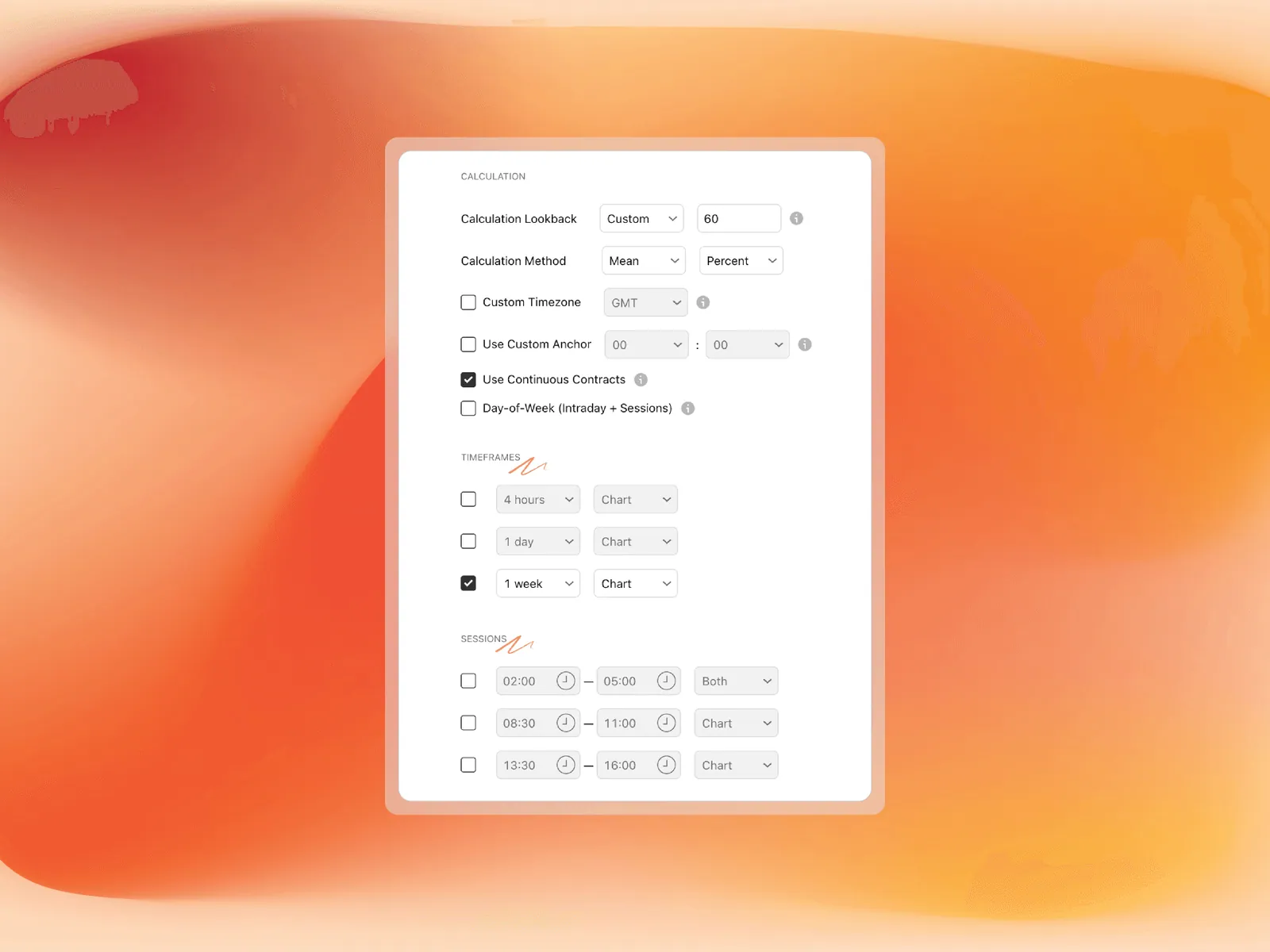
Calculation
| Setting | Options | What it does |
|---|---|---|
| Calculation Lookback | 5, 20, 40, 60, Maximum, Custom (minimum 5) | How many past periods feed the statistics. Fewer samples react faster to recent behavior, more samples give steadier levels. |
| Calculation Method | Mean, Median, Both | Mean projects levels further out and reacts more to outliers. Median is more conservative. Both draws a range box from the Mean level to the Median level. See Mean vs Median. |
| Calculation Unit | Percent, Points | Percent adapts to the price level of the asset, Points uses fixed distances. See Measuring Ranges. |
| Custom Timezone | Off (America/New York), GMT-12 to GMT+12 | The timezone used for sessions, time markers and the custom anchor. GMT offsets are fixed and do not follow daylight saving time. |
| Use Custom Anchor | Hour 00 to 23, Minute 00 to 59 | Starts the daily (1D) rows at your chosen time instead of the instrument's regular daily candle, for example 09:30 for the NYSE open. Details in Custom Daily Anchor. |
| Use Continuous Contracts | On (default), Off | Futures only. Keeps the history clean across contract rollovers. |
| Day-of-Week (Intraday + Sessions) | Off, On | When on, intraday and session statistics are kept separate per weekday, so Monday 10:00 is only compared with earlier Mondays at 10:00. |
The FAQ suggests starting with a lookback of 60 for stable statistics and using 20 to 40 if you want levels that adapt faster.
Timeframes and Sessions
StatMap° has 3 timeframe rows and 3 session rows. Each row has an Enable checkbox and a Visualization choice: Chart, Table or Both.
- Timeframe rows: pick any TradingView timeframe (15m, 1H, 4H, 1D, 1W and so on, including custom intervals). Your chart timeframe must be equal to or lower than the largest timeframe you select.
- Session rows: enter a time window in HHMM-HHMM format. Sessions use the timezone from the Calculation settings. Examples in New York time:
0200-0500London,0830-1100New York AM,1330-1600New York PM.
Style
- Visible Elements: StatMap Levels, Liquidity Levels or Both (default). Use it to declutter the chart.
- Line Position: Full Session (lines span the whole period), Current Bar (lines end at the current bar) or Offset (short lines near the current bar, with an Offset bars value).
- Level styles: [+] Distribution, [-] Manipulation, Open, [+] Manipulation and [-] Distribution each have an enable checkbox, color, line style (Solid, Dashed, Dotted) and width. When a custom anchor is active, the Open label shows the anchor time.
- Time Markers: vertical lines that show when the manipulation and distribution extremes have typically formed, with color, style and width controls.
- Labels: enable, text color (0% opacity follows the level colors), size (Tiny to Huge) and form (Shortform such as
+ D, or Longform such asDistribution). - Historical Sessions: how many previous periods to draw (0 to 100, where 0 shows only the current one) and whether they get labels. Useful to check how levels behaved in the past.
- Table: text size and position (Top, Middle or Bottom combined with Left, Center or Right). The table shows the projected level prices and which quarter of the period touched each level.
[+] stands for the bullish case and [-] for the bearish case. If you are new to the levels, read What is Statistical Mapping? first.
Liquidity
- Liquidity Line Style: color, style and width (1 to 10) for liquidity that has not been swept yet.
- Raid Line Style: color, style and width for swept (raided) liquidity. Swept lines are drawn dotted by default.
- Timeframe: the chart timeframe or a higher timeframe used to find swing highs and lows, for example 1H on a 5m chart.
- Lookback: how far back liquidity is considered, for example
3M,90D,12Wor24H. - Threshold: a tolerance in percent around each projected level. Higher values show more liquidity points, lower values only close alignments.
- Only Pre-Session Liquidity: when on, only liquidity that existed before the current period opened is shown.
- Show Area: draws the threshold window as a box around each level.
Alerts
StatMap° alerts fire automatically when price reaches an enabled Distribution or Manipulation level and when a liquidity level is swept. There is no alert on the Open. Each alert fires once per period of its row. To get fewer alerts, disable the level styles you do not trade. The full list is in StatMap° v4 alerts.
Statistical Volatility° settings
General
- Calculation Lookback: 5, 20, 40, 60, Maximum or Custom, as in StatMap°.
- Calculation Method: Mean or Median. Median is less affected by extreme bars.
- Calculation Unit: Percent or Points.
- Custom Timezone: GMT-12 to GMT+12, as in StatMap°.
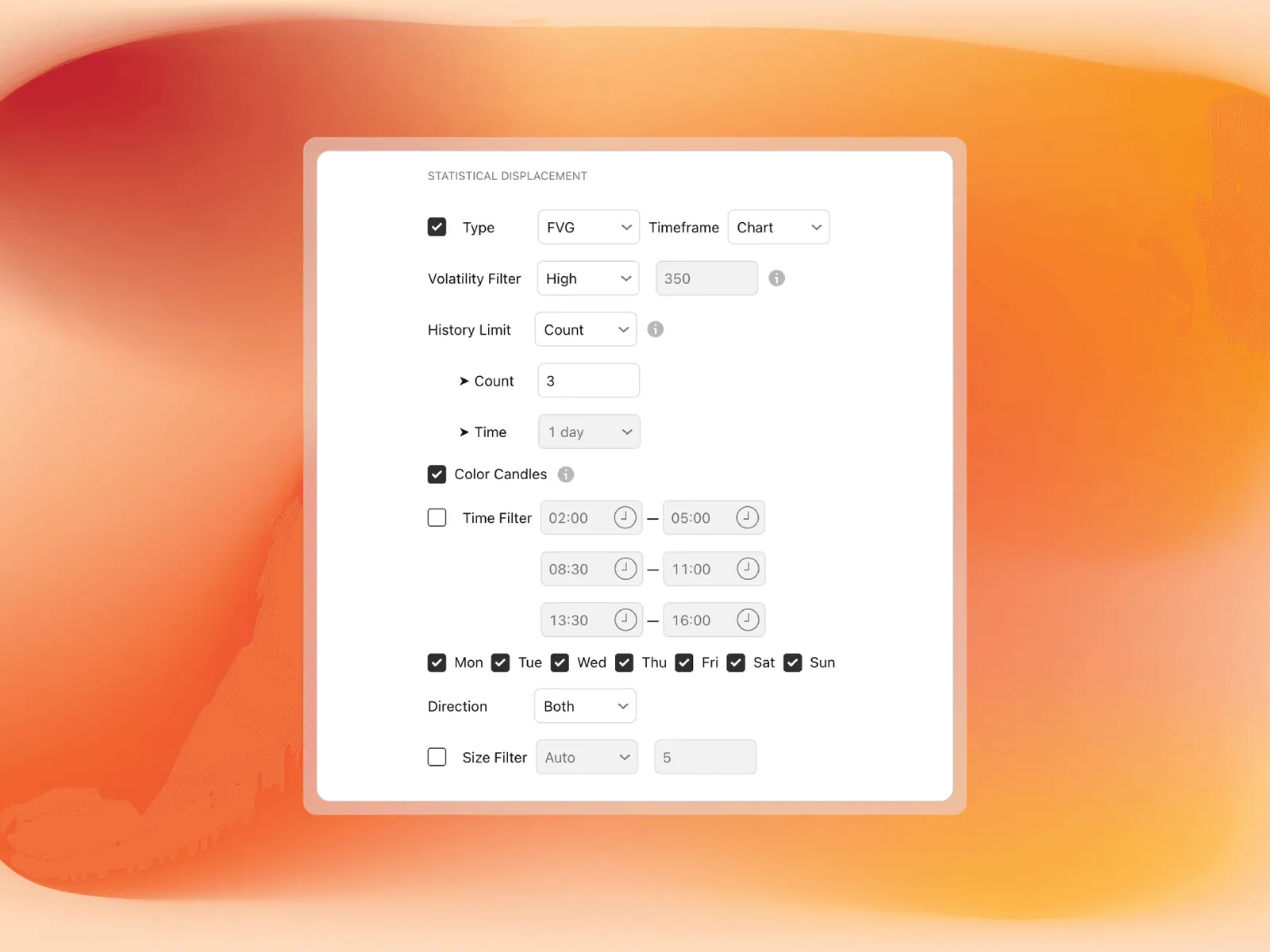
Statistical Displacement
- Enable: master switch for displacement detection.
- Type: how a displacement is drawn. Range covers the candle from high to low, Body from open to close, FVG covers the fair value gap the move leaves, and only displacements that leave one are shown.
- Timeframe: the chart timeframe or a higher one, for example 1H displacements on a 5m chart.
- Volatility Filter: how large a bar must be compared with its typical size: Low (200%, the default), Medium (300%), High (400%), Extreme (500%) or Custom.
- History Limit: Count keeps the last N displacements (default 3), Time keeps all displacements within a window such as 1D or 1W.
- Color Candles: colors chart candles by how large they are compared with their typical size.
- Time Filter: up to three sessions in HHMM-HHMM format. The defaults are 0200-0500, 0830-1100 and 1330-1600 New York time.
- Day-of-Week Filter: choose which weekdays count, for example to exclude weekends on crypto.
- Direction Filter: Both, Up-Closed or Down-Closed.
- Size Filter: Auto, Percentage, Pips, Points or Ticks, to ignore displacements below a minimum size.
Displacement Style
- Candle Color Gradient and Extension Color Gradient: colors from the smallest to the most extreme displacements.
- Position: 50% Fill, 100% Fill, Bars (with a bar count), Current Bar or Offset (with offset bars).
- 50% Line: show or hide the midline of each displacement box, with style, width and color.
- Tooltip: enable, location (Automatic, Below, Above), size, and Show All Tooltips to label every candle above the threshold.
- Force Chart Displacements: when you watch a higher displacement timeframe, candle colors still follow the chart timeframe.
Graph Pane
The graph pane below the chart shows the typical volatility for each time of the day or day of the week. Statistical Volatility°: finding the active hours explains how to read it.
- Show Graph: master switch.
- Style: Heatmap (default) or Histogram.
- Volatility Filter: Low shows every time slot, Medium (33%) and High (66%) hide the quieter slots, Custom sets your own percentage.
- Color Gradient: colors for low and high volatility.
- Show Reference Lines (Histogram only): lines at 0.00, 0.33, 0.66 and 1.00.
- Current Volatility Overlay (Histogram only): draws the current bar's volatility as a line.
Table
Enable, position and size. The table lists the last 3 bars of the displacement timeframe with their time and ratio, for example 325%.
Alerts
Enable Alerts is on by default. Choose Creation (on by default), First Touch (on by default) and Midpoint Touch (off by default). Each fires once per displacement. See StatMap° v4 alerts for message examples and the TradingView setup.
Where to go next
- Combine both indicators with the methods in Combining StatMap° and StatVol°.
- Product overviews: Statistical Mapping° and Statistical Volatility°.
- Questions about a setting? Ask in the StatMap Discord.
Put it on your chart
Get Statistical Mapping° and Statistical Volatility° for TradingView, or ask StatMap AI about settings and setup.
Related articles
Getting Started: Claim Access, Add the Indicators, First Setup
Claim your TradingView access on Whop, add Statistical Mapping° and Statistical Volatility° to your chart, and set up a simple first configuration.
How to Set Up Alerts in TradingView
Set up TradingView alerts for Statistical Mapping° and Statistical Volatility°: which events trigger them, which condition to pick and how to manage them.
StatMap° v4 Alerts: What You Can Alert On
Which events trigger alerts in Statistical Mapping° and Statistical Volatility° v4, what the messages look like and how to create the alert in TradingView.